14 April 2026
Suffocation
Your Laptop Is Slowly Suffocating (And It’s Not Its Fault)
Let’s set the scene.
It’s a quiet afternoon. Your laptop hums along as it always has—faithful, dependable, maybe a little warm to the touch. You open a browser tab. Then another. Then ten more. Suddenly, the fan kicks in like it’s preparing for take-off, your keyboard feels like a heated blanket, and everything… just… slows… down.
You sigh. “It’s getting old,” you think.
But here’s the twist: your laptop isn’t just aging—it’s clogging.
The Invisible Enemy: Time + Dust = Trouble
Every laptop, from the sleek ultrabook to the chunky, trusty Thinkpad, shares one unavoidable truth:
It breathes.
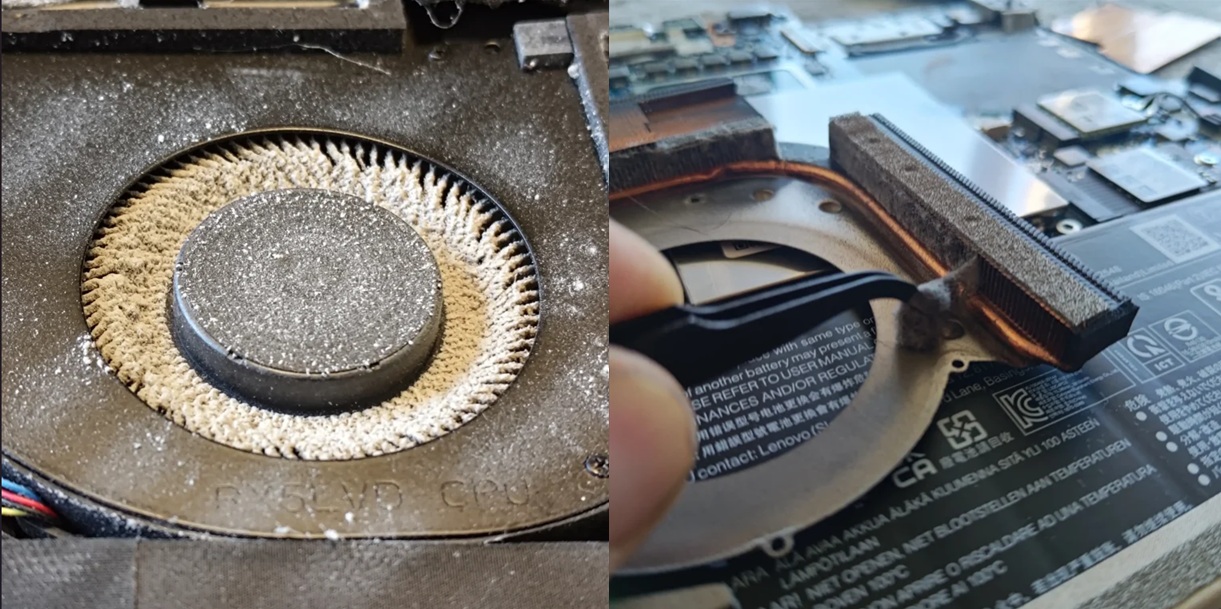
Air is constantly pulled in through vents, rushed across heat sinks, heat pipes and cooling fans, and expelled out the sides, back or bottom. This airflow is what keeps your CPU and GPU from overheating during everything from emails to intense workloads.
But air doesn’t travel alone.
It brings:
• Dust
• Pet hair
• Skin particles (yes, really)
• Tiny fibres from clothing and carpets
Over time, these particles build up inside your machine like lint in a dryer filter—except your laptop doesn’t have a convenient “clean me” light.
What Actually Happens Inside
At first, the dust is harmless—just a light coating. But as months turn into years, it begins to cause bother:
1. Obstructing Airflow
Dust accumulates in vents and fans, restricting the very airflow your laptop depends on. Less airflow = less cooling.
2. Insulate Heat
A thick layer of dust acts like a blanket over heat sinks. Instead of dispersing heat, it traps it.
3. Overwork the Fans
Your fans spin faster and louder to compensate. This isn’t just annoying—it’s wear and tear.
Battery draububg
Your overworked fan drains your laptop battery faster.
5. Cook the Components (Slowly)
Higher temperatures force your CPU and GPU to throttle performance to avoid damage. That “sluggish” feeling? That’s your laptop protecting itself.
The Silent Performance Killer: Thermal Paste
Here’s something important most people never think about: thermal paste.
Between your processor and its cooler sits a thin layer of this paste, designed to transfer heat efficiently. When fresh, it works brilliantly. But over time, it:
• Dries out
• Cracks
• Loses conductivity
The result? Heat transfer becomes less efficient, and temperatures creep higher—even if everything else is clean.
It’s like having a radiator… filled with air instead of water.
The Symptoms You Might Recognise
If your laptop could talk, it would probably complain long before it failed. Instead, it gives subtle hints:
• Fans running loudly, even during light tasks
• The chassis getting noticeably hot
• Slower performance over time
• Sudden lag spikes or thermal throttling
• Battery draining faster (heat is inefficient)
Most people interpret these as “it’s getting old.” In many cases, it’s actually just… dirty.
A Breath of Fresh Air (Literally)
Here’s the good news: much of this is reversible.
Cleaning out dust, restoring airflow, and refreshing thermal paste can:
• Lower temperatures significantly
• Reduce fan noise
• Restore lost performance
• Extend the lifespan of your device
It’s not magic—it’s maintenance.
Think of it like servicing a car. You wouldn’t expect peak performance after years without an oil change. Your laptop isn’t so different.
How Often Should You service it?
That depends on your environment:
Dusty homes / pets / carpets: every 4–6 months
• Average use: every 6–12 Months
• Heavy workloads (gaming, dev, creative): lean toward the more frequent side
Even if you don’t notice issues yet, buildup is happening quietly in the background.
The Takeaway
Your laptop’s performance doesn’t just depend on specs or age—it depends on how well it can breathe and shed heat.
Dust, dirt, and time don’t crash your system overnight. They slowly, quietly chip away at its efficiency until one day you’re wondering why everything feels… harder.
And often, the fix isn’t a new machine.
It’s just a clean start.
If your laptop has been working hard for you, it might be worth returning the favour—just a little housekeeping under the hood can make a surprisingly big difference. If this isn't something you're comfortable doing yourself, get in touch for a professional laptop service, including fresh thermal paste. You'll be glad you did, and so will your trusty laptop!