
Windows OS reinstall with model drivers / Restore
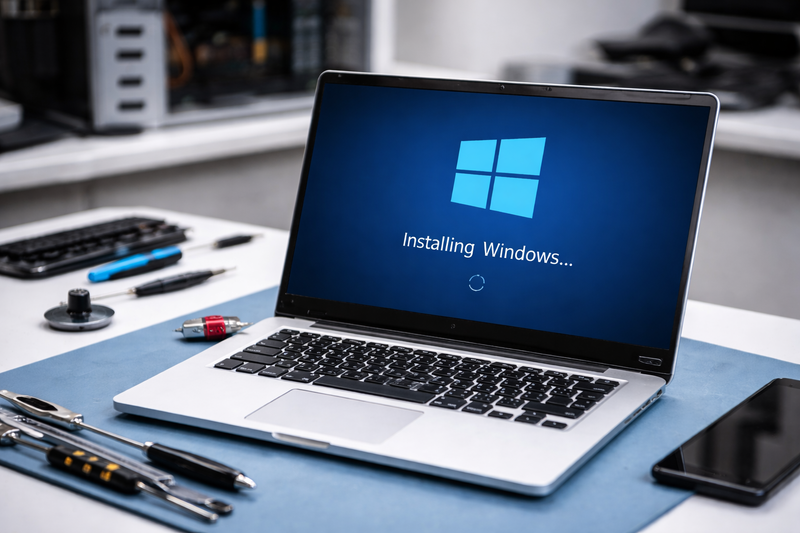
Windows OS reinstall with model drivers / Restore
AvailableA clean Windows installation resolves persistent software issues, removes viruses and malware, and restores your laptop to full working performance. Unlike a factory reset, we install Windows with the correct OEM drivers specific to your exact laptop model — ensuring every component, including Wi-Fi, audio, touchpad, and function keys, works correctly from the moment you get it back.
How It Works
Data Backup Reminder. A clean Windows installation wipes all existing data from the drive. Please ensure you have backed up everything you need — documents, photos, downloads, browser bookmarks, and application data — before we begin. We can advise on backup options, but responsibility for data preservation rests with the customer.
Drive Wipe & Partition Setup. The existing Windows partition is fully removed and the drive is repartitioned cleanly — ensuring no residual system files, bloatware, or malware remnants carry over from the previous installation.
Clean Windows Installation. A genuine, up-to-date copy of Windows is installed from official Microsoft media, using the edition (Home or Pro) appropriate to the licence associated with your device.
Model-Specific Driver Installation. This is the step that separates a professional reinstall from a basic one. We source and install the correct OEM drivers for your exact laptop make and model — covering chipset, display, audio, Wi-Fi, Bluetooth, touchpad, keyboard function keys, and manufacturer utilities. Without this step, many components show as generic devices or fail to work entirely.
Windows Update. The system is updated to the current cumulative patches and security updates before handover, ensuring you are protected from day one.
Final Validation. We confirm all hardware is recognised, Device Manager shows no errors, and the system is booting quickly and responding correctly before returning the device to you.
Frequently Asked Questions
Will I lose all my files?
Yes — a clean installation wipes the drive completely. Please back up everything you need first. If you need help identifying what to back up or how, let us know and we will advise before we start.
What is the difference between a reinstall and a factory reset?
A factory reset (via Windows' built-in Reset this PC) reinstalls Windows but may retain bloatware and will not always fully resolve deep software corruption or persistent malware. A clean reinstall from installation media provides a genuinely fresh start — and our process includes model-specific drivers rather than relying on Windows Update to find generic alternatives.
What Windows edition will be installed?
We install the edition licensed to your device — most consumer laptops come with Windows 11 Home. If you hold a Pro licence key, please provide it at booking. We can also install Windows 10 if preferred or if your device does not meet Windows 11 hardware requirements.
Why does driver installation matter so much?
Without the correct drivers, hardware components may not work at all or may work in a reduced capacity. Common issues on improperly-configured reinstalls include no Wi-Fi, generic audio without volume controls, a non-functional touchpad, and missing function key shortcuts. We source drivers directly from the manufacturer's support pages for your specific model.
Will my Office or other software still work?
Applications need to be reinstalled after a clean OS install. Microsoft 365 reinstalls easily by signing back in — the licence is account-linked. For boxed Office or other software, you will need your licence keys and installation media. We can reinstall software after the OS installation if required; please mention this when booking.
How long does it take?
A full clean installation including driver setup and Windows Update typically takes 1–2 hours. On older or slower hardware it can take a little longer due to update download times.
Why Choose a Professional Service?
A Windows reinstall is deceptively simple at face value — but done incorrectly, it can leave you with a system that appears to work but has underlying driver or hardware configuration issues. Common mistakes with DIY reinstalls include:
Installing Windows without erasing old partitions, carrying forward hidden malware or corrupted files
Relying solely on Windows Update for drivers, resulting in generic or outdated drivers that do not match the hardware
Installing the wrong Windows edition, causing activation problems
Missing manufacturer utilities that control keyboard backlighting, battery charge limits, and function key behaviour
Our reinstall delivers a clean, fully functioning system where every piece of hardware is correctly configured — matching or exceeding the state the laptop was in when it left the factory.